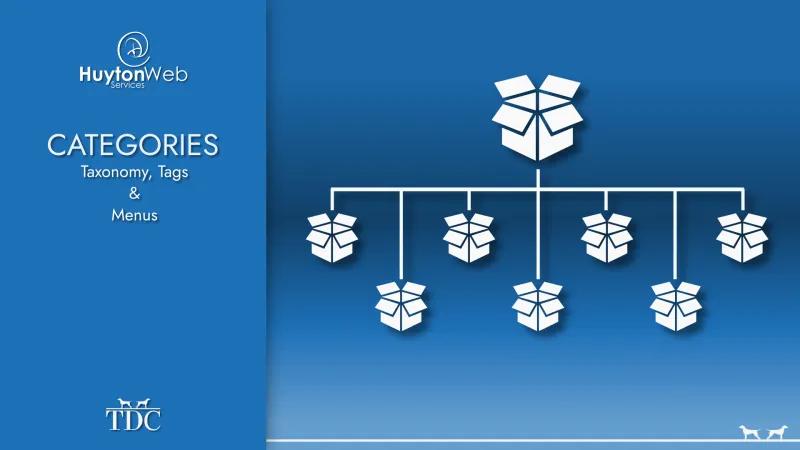

Categorising or Taxonomy is another interesting topic that seems simple at first, then as we look further into it, we start to see the many complexities. The first decision we needed to make is what we wanted to call the section and we had a few options:
- Taxonomy - This is the correct name, but it is not 'friendly', it is technical and could be confused with Taxidermy. With the name Two Dogs this could be detrimental to the brand.
- Groups - We could not use this as we will have Groups of uses (later) that we will allow managers to manage and these will be called Groups.
- Categories - We would have a default type called categories so could be confusing, but if we use it correctly should make sense.
The section would be Categories with Category Management.
Category Types
We started with content types like Webpage, Article or Product and looked at the categories we might want to use with these, that gave us the types of category we would need:
- Webpage – Will need categories for Main and Footer menus
- Article - Will need Articles category and Article Tags (tagging is a grouping of content so it is a category)
- Product - Product Menu and Submenus, Colour and Size Tags as all categories we would need
With these 3 content types above, we can see we'll need 3 types of category:
- Menu
- Category
- Tagging
These 3 types could be scaled to create all of our category needs. If you can think of something that does not fit here, please let us know in the comments or contact us.
We had the name of the section and the types of category, we needed to start looking at how this will work as a section.
Creating the section
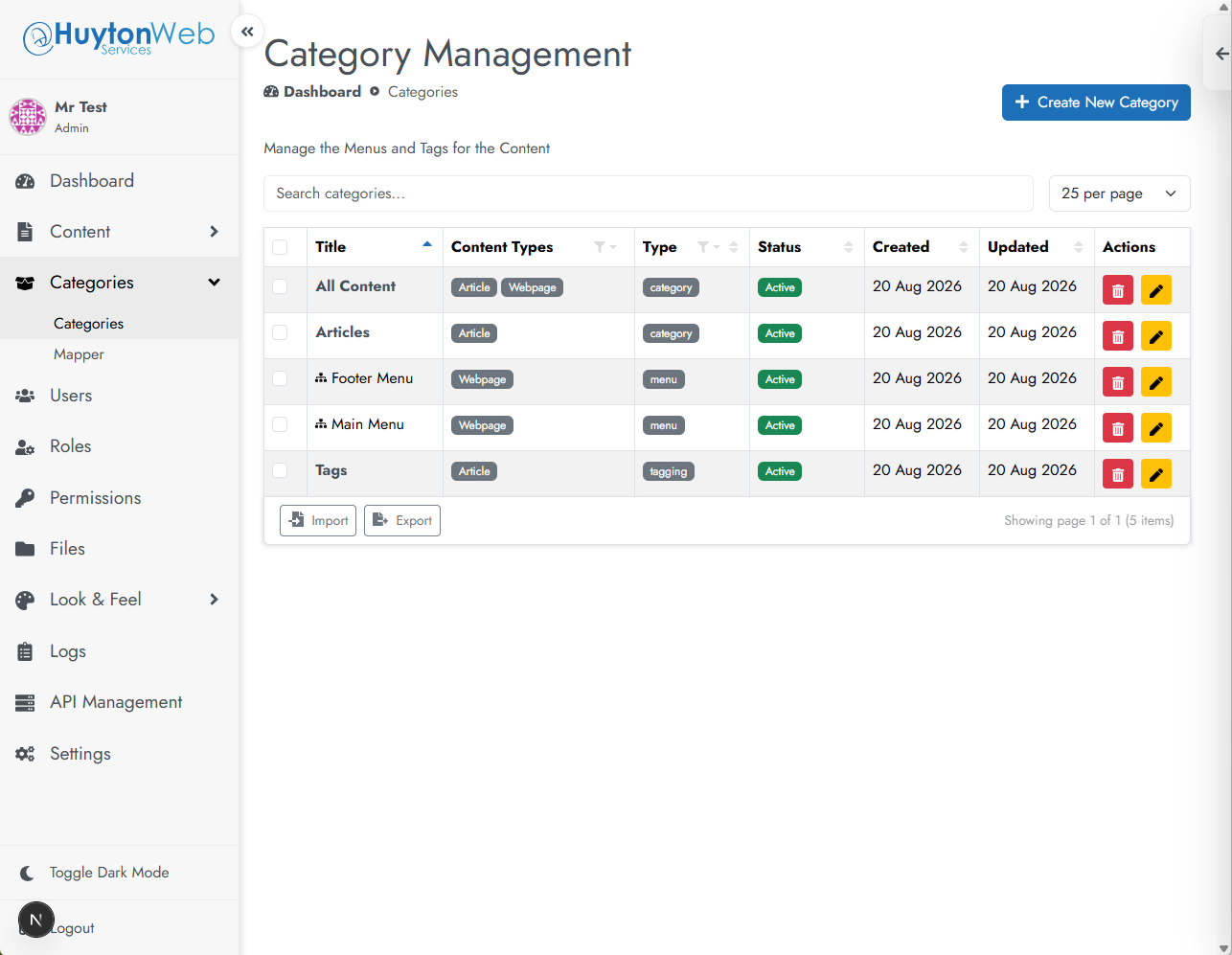
The usual manager with a table of all the categories, sorting, filtering, pagination, search, etc was going to be used for the management of categories. Add some actions for edit and delete for each row of the table and buttons for import and export. To round off the manager, a button to create a new category would be added.
This is the usual section, but we were missing something. Categories react with each other, they can become sub-categories and they can have sort orders that relate to each other. An edit page is not the right place for this as an edit page it to edit the singular category, not the category relationship. We had to map all the categories in relation to the system and themselves. So, a Mapper.
This gives us 2 parts to the section, the mapper and the manager.
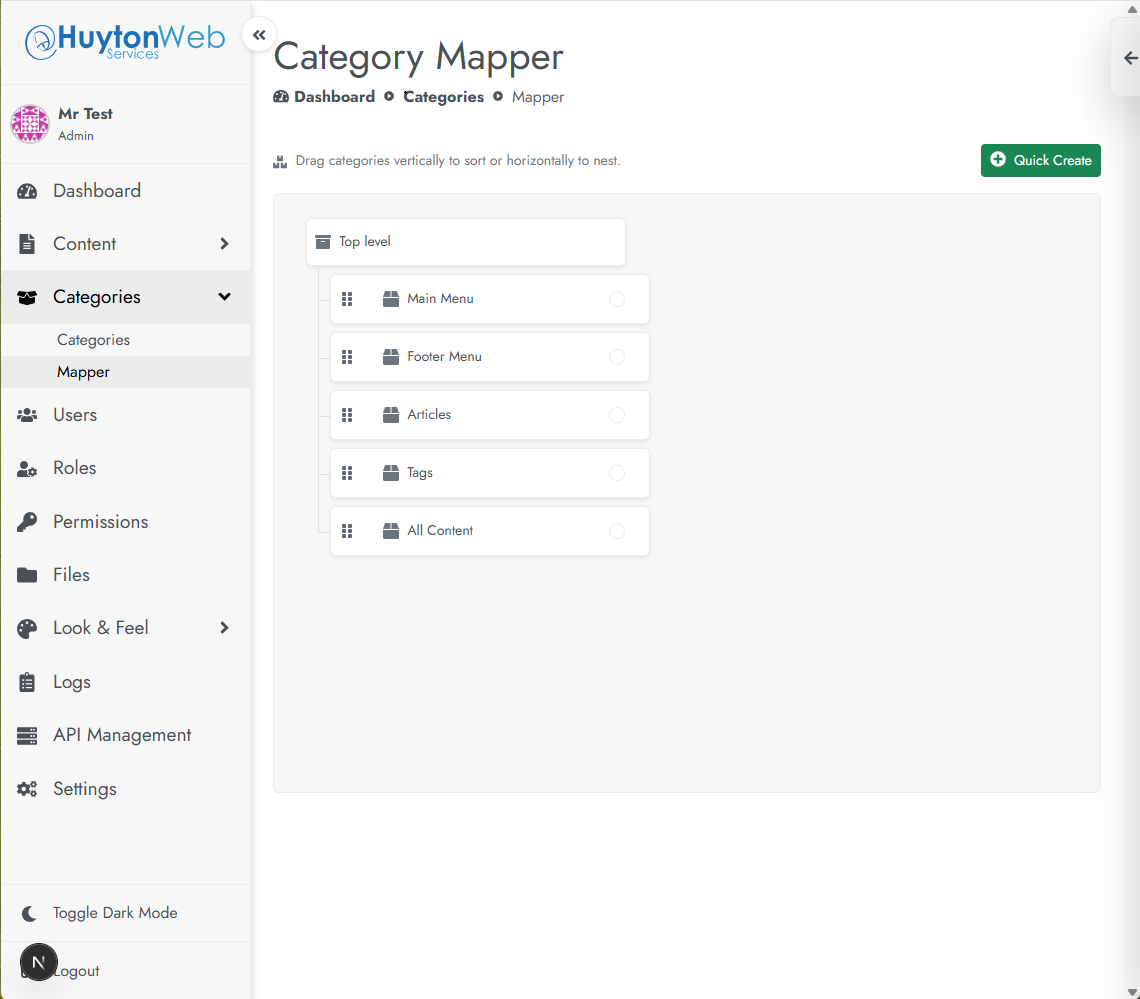
Mapper
The Mapper would be a drag and drop system to move categories around and create relationships. It would also allow the user to order the categories and do a quick create. If we have a menu with some sub-categories, we could quickly change the order and if we need to add more sub-categories, we could quicky add these.
If we had a bunch of content in the category and we needed a specific content to show at the top, we should be able open the category and drag and drop the content into the correct order. We should have the option to duplicate, quick edit, delete or change the colour.
The Category Mapper would be the place to go if we need to quickly build a full category system, for example, for a shop or classification of animals.
Manager
If the Mapper is to be the quick categories, then the Category Manager would be the full editor. Here we build (or edit if we already have them) each category as a separate entity we may or may not need to map. For example, if we have a footer menu and a header menu, then we build them in the Manager and don’t use the Mapper at all.
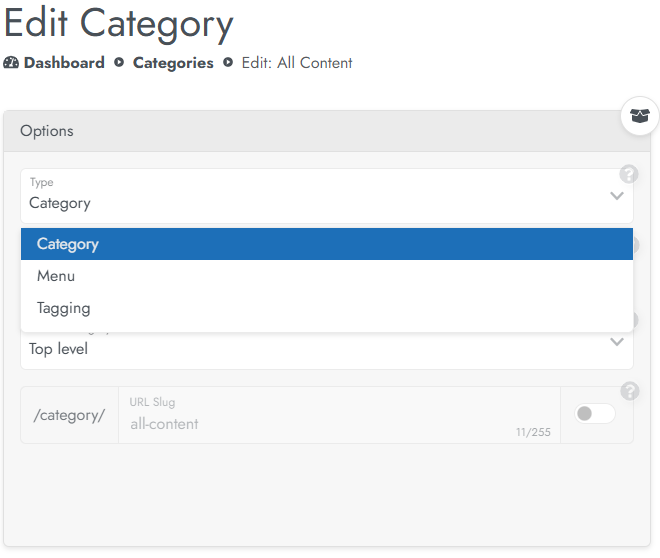
Once we hit create (or edit), we would choose the type from either:
- Category
- Menu
- Tagging
We will always have the option to fill in the title and colour and chose the parent category, but depending on the type we choose, we will have different options and extras.
Slug
Categories and Tagging would have a slug created from the title in lowercase, special characters removed and spaces changed to dashes i.e. kabab-case.
This slug would create the URL to reach the category if we need a page for the category. A menu will not need a separate page, but tags and categories would. Any tagging category would start with /tag/ and all basic categories would start with /category/.
For example, if we have a category called 'All Content', then the slug will be 'all-content' (we could change this default) and the URL will be /category/all-content.
Automated Content Types
These would be content types that are added to the category as the content is created.
For example, if we have a Menu category called 'Footer Menu' we might add the content type 'Webpage'. Any webpage created would appear in the 'Footer Menu' (if it is live/published).
This selection would be backwards compatible, so any content of the type that already exists is added, so, in the example above, if we had already created 4 webpages, they would all be added to our ‘footer menu’.
We could choose to go through the Content Type section we can assign categories in the same way.
Sort order
When we show a category page on the presentation side, we would see all the content in no particular order. We can change the order manually in the Mapper, but that would mean a trip to the mapper every time we create new content. We needed a default order so we can add content safe in the knowledge it will appear in any categories correctly. We will have the options of Alphabetically or in Date order.
In the Mapper we could still override this automated order with the drag and drop ordering.
- Question: If we sort all our content manually, what would happen if new content is created, we wouldn’t have manually added it to the list?
- Answer: All content will be created with a weight of 0. If we sort, that weight changes to 10 and above. The ‘lightest’ will float to the top. So, new content will always go to the top as they always have a weight of 0. The default sort will help here too as multiple content with a weight of 0 will be sorted in the default order.
Later, we may add a ‘to top’ that will add content to the top of a category, but that is something we might not need.
Display Mode
This would be used for Category and Tagging types.
If we wanted to show a category on the presentation side i.e. if the user was to go to the link, we would have the category in a block. How it would be shown is dictated by the display mode:
Filter
The block would have tick boxes and the page will show all content in the category as cards. Clicking a card will go to the content. Unticking or ticking from the filter will change the content that is shown on the page.
Useful for things like colour or size for products so a user can filter what they don’t want to see.
Links
The block will show all the pages in the category as links the user can click and clicking a link will take the user to the content.
Useful for showing as a menu for tags or extras on the page.
Menu Position
This will be used with the Menu category type only (Tagging and Category will have a block that can be added in the Template Section).
We could then chose where this menu is shown, on the header, footer, left or right.
Manual Links
These will be used with all 3 types of category and would be used for creating manual links that are not part of the managed content. For example, if we have a Menu called 'Footer Menu' and we add 'Webpage' as the 'Automated Content Type', this means all the webpage content we create is added to the Footer Menu, like 'About us' or 'Company goals' or whatever, but we can add the 'Contact Us' page by adding as a manual link.
We could create a category called 'Social Links' and add all the social media links manually. This category could then be added to the footer or a side menu if we need it.
Summary
As I said at the beginning, the categories are much more difficult conceptually and technically than we would expect, but it seems we have all our bases covered here. If we've missed anything, as usual, please comment or contact us. If you would like to use the Two Dogs CMS or you have some web work you'd like looking at please contact us.