
Let's take this this right back to the beginning and look at the part of the goals for this system
... as simple as Wordpress, a functional as a fully modded Drupal install, with the performance of a well crafted website...
We must make this as simple, functional and performant as possible. With the goal in mind let's look at the architecture for the File System. We'll start with a look at the issues with this simple plan.
Ephemeral drive
The first problem is the ephemeral drive problem. We can't simply upload files to the server and use them like we can with other systems (e.g. PHP), because, the chances are, we don't have access to the hard drive.
When we install the CMS, we either upload a zip of the base files or we use a service to push the files to the server on a trigger, for example a change of the master branch. However the files get to the server, the next steps are the same, we build the system. That is, we take the JavaScript, CSS and all the other files and turn them into a self contained 'build' that is the full system ready to use. Once we have a build, that build is set as the new version of the system and can be put to live. Sometimes there are multiple copies of the build so if 1 is busy another can be used, sometimes there is only 1 copy (there may even be a copy of the build per user).
When a new build is put live, everything in the old build is removed, including any files that may have been uploaded to that build. If there are multiple copies of the build, then uploading a file to 1 copy will mean the other copies cannot see the file. This is usually how a Software as a Service (SaaS) system works and each time a server is full, a new instance is created, when 2 or more copies of the system are empty 1 copy is stopped and removed.
The advantage of this is we can very quickly scale up and down systems as needed, but the disadvantage is there isn't any access to add or remove any files in any way as instances are usually read only and when removing the instance, all files are removed with it. This is known as ephemeral, because the storage isn't really there.
So, if the file Storage is destroyed with an instance and we don't usually have access, how can we add file storage? There are 2 answers to this:
- We can use the storage 'sometimes'.
- We can add 3rd party storage.
Let's look at each of these.
Server storage
When the server creates a build, we can run a script before it starts, an initialisation script. We can do things like directory traversal if we have access, if we don't have access, we set a flag that says 'No server file access' and leave it there.
The folder the build is created in is a temporary folder that is sometimes deleted or moved, but if we traverse out of the build folder up to the parents, we can get to the root folder of the system. Again, if we have no access, we set our flag and leave it there.
We can create our folders assets and system and link them to folders inside the build with the same name with a symlink. Now, if we create or upload files in the assets or system folder, we are actually creating them in the 'real' file system, not the ephemeral one.
As I said, this does not always work and will only work on shared or VPS type hosts like Hostinger, but SaaS hosts like Firebase or Vercel won't allow this. We allow the New CMS to be installed on as many systems as possible, so if at any stage the server file system fails, we set our flag and the system cannot use local file storage. If everything succeeds and the File System works on the server, we set the same flag, but as true and we are allowed to use the storage on this type of hosting.
However, just because we can use this type of file storage, we don't have to. The user may not want to use it, because they might want to split the files from the hosting for security, backing up or they may not have the space. So if the system cannot use this type of storage or the owner of the system does not want to use this, we need to give them other options.
3rd Party Storage
There are a few 3rd party storage types that can be free, low cost and scale as needed. The ones we support out of the box are:
- Google Drive Personal
- S3
- AWS S3 Buckets
- DigitalOcean Spaces
- Cloudflare R2
- Many other S3 types
- Firebase
These have their strengths and weaknesses and some are more difficult than others to setup (Google Drive is very difficult), so we include full instructions on how to setup each of these.
In the settings page, the user with access can setup any of the 3rd Parties (or the server storage if possible) and the system will copy the files from the previous storage as part of the setup (if the user chooses). Once the system is setup with the storage, they can start using it.
File manager
When a File Storage is setup, we will see the File Manager appear (for users with access) on the main menu. On clicking the File Manager link we see a fully functional file manager with uploads, renaming, deleting and all the other functionality we would expect. We also have Drag & Drop for moving files and a choice of views from Table or Thumbs.
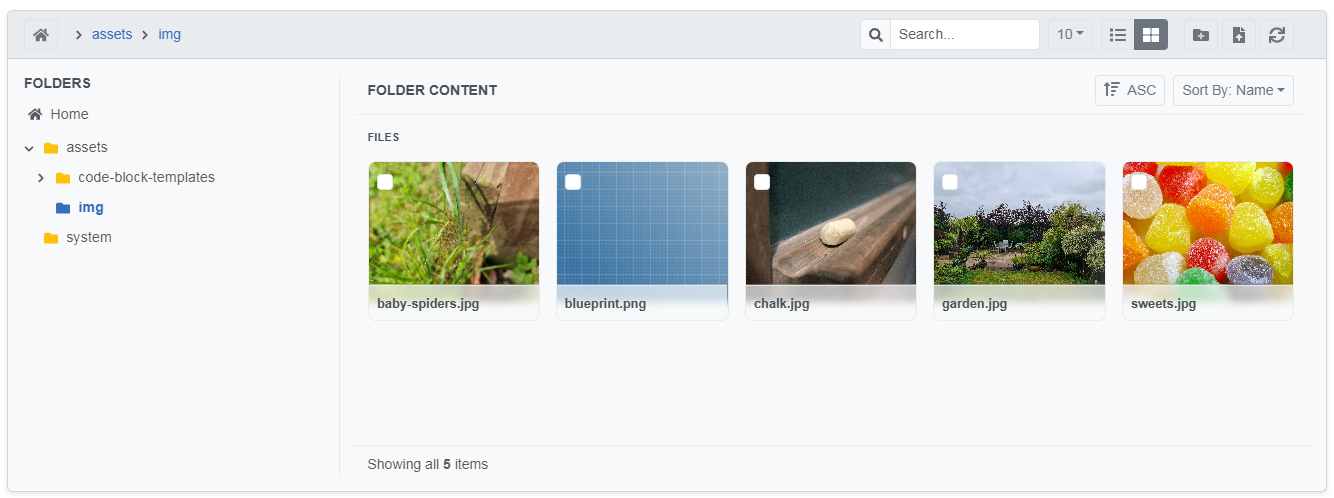
The file manager works with any of the third parties or the local server storage and is fully working, but we may change the look once we have the system brand complete.
There are 2 folders, assets and system.
- Assets is the public folder and anything added here will be seen by the public.
- System is a private folder for use by the system only. This is for things like new Field Formats or Themes and we will add any user-added system files here so they will not be removed across builds and updates.
With both of these folders, we can allow a user to create images and other files that can be shown to the public and/or allow the user to create files and folders they don't want to be public for example theme files.
How does this all work?
On the Admin side we have the file manager all laid out using the same libraries as the rest of the Admin (yes, this is fully bespoke). To get the files, we have an API call using JSON:API 1.1 spec (as we have for the full API) but 'includes' and other options like it are no use here, so they are omitted. Usually the API is connected to the DB, so we've had to override the usual functionality and the RESTful PATCH, DELETE, POST, GET and PUT now pass off to the chosen Driver to do the usual function in the specific way the 3rd party needs.
Drivers
We have a Driver for each supported File system, all with the same functions, just doing something different, so all the get functions will get a file or many files, but will do it in a different way per Driver. Depending on the File System Type in the database (added in memory for caching) we call the correct function from the correct driver. All simple architecture, but complex code, working with searches, pagination and sorting.
This opens the system up for any new type of 3rd party file system, we simply setup and new driver, add all the necessary functions and add it to the settings with instructions. We may even allow importing new drivers for 3rd parties or create a space for new drivers so user can add their own and other users can import them. As we said at the top "... as simple as WordPress ...".
WYSIWYG / Rich Text Editor
The storage types are in, the initialisation script is complete and the File manager works with all Drivers, so we are moving to the integration of the API and File Manager into the system, starting with the WYSIWYG.
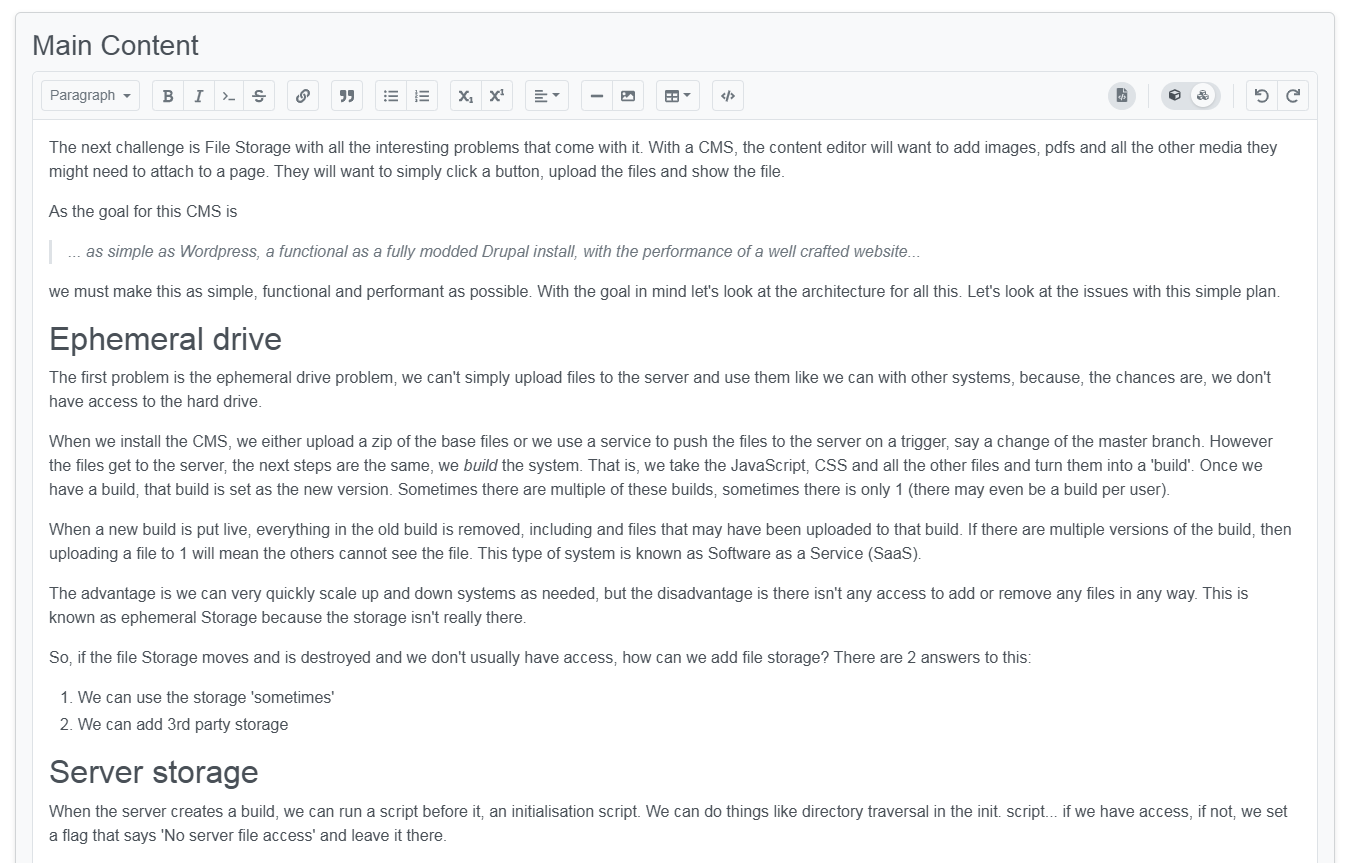
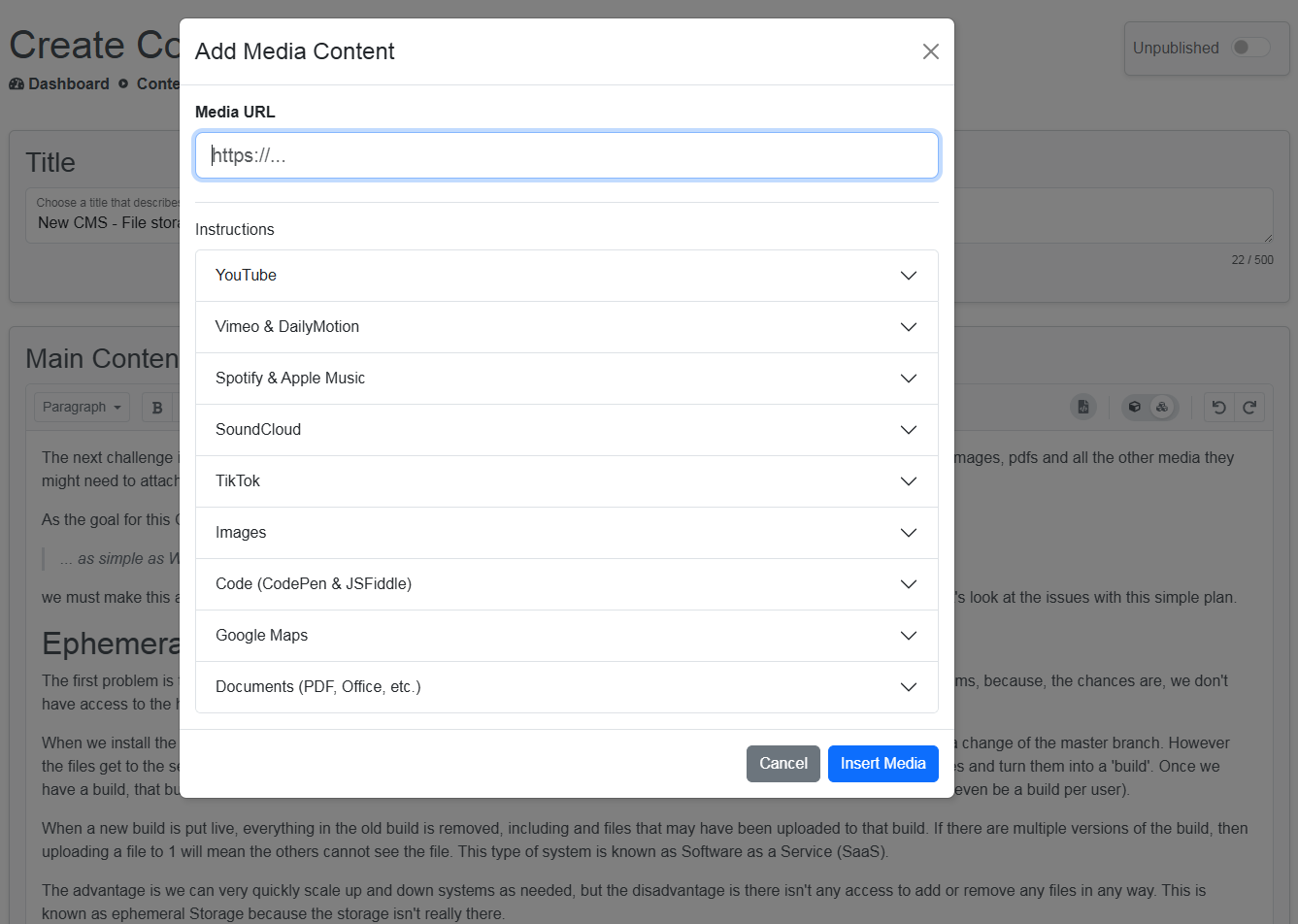
On the WYSIWYG we have a button that allows a user to paste in a link to a file or image and the system will show the image, file, movie, playlist, etc. our next task is to add Upload to this. We can add a simple textbox / Drag & Drop that the user can use to upload and the system will put the file in the correct place and show it in the correct way. Simple for the user, more difficult to code. We can also add the full file manager and the user can choose a file already in, upload new files and choose a file or whatever.
We may even allow a user to choose a bunch of files and the system will show them in a number of ways from gallery, carousel, table or other choice.
Import
Once the Editor is complete, we can then start to integrate some real power into the New CMS allowing users to create their own Field Formats and upload them with the import. This will add the code, add the data into the database and any other files it might need like CSS or JS files.
We already have imports for Field Types, Fields, Content Types and Content where a user can download an csv file, fill in the blanks and upload to have the data added. While this doesn't add too much there, we can keep the csv files for backup and logs.
Summary & Next Up
The file system is in and working with local file server or 3rd parties. We have a File Manager that allows users to view, upload, delete, rename and move files easily. The API for files is complete and RESTful allowing access to 3rd parties should they be given access. We have a few more tasks before the File Storage is complete like full integration with the WYSIWYG and the import system.
Once the File System is complete, the next major task is the menu/category/taxonomy/tags system. It's not a catchy name, so we need to work on that. We also have the branding for the New CMS -> Two Dogs CMS (the site is up and down as we develop). Either way, if you have any web work you'd like doing, big or small, or an app you have an idea for, contact us and we'll help. There's no charge for a chat!